
How to Upload Photos to Your Listing on ConfinementCares.com
[For Confinement Center Business Owners]
Photos help your listing stand out and give new moms a real sense of your space, products, or services before they even reach out. Here's how to add or update photos on your ConfinementCares business listing.
Step 1: Log In to Your Account
Go to https://confinementcares.com/ and click Login / Register, then sign in with your registered email and password.
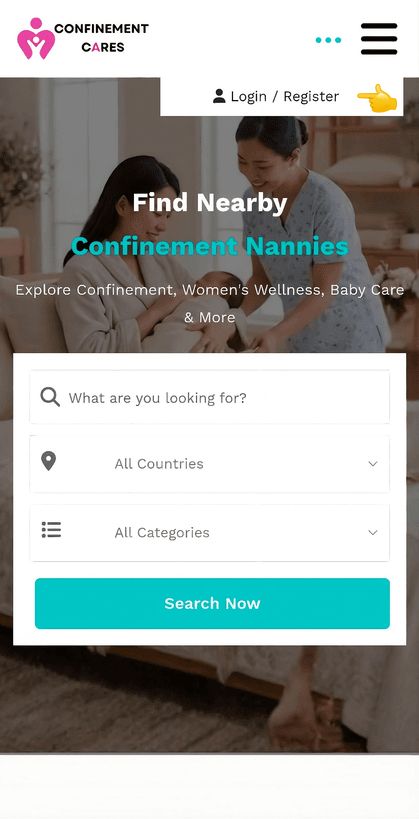
Login page
Step 2: Open Your Dashboard
After logging in successfully, go to your Profile Dashboard by clicking My Account → Dashboard
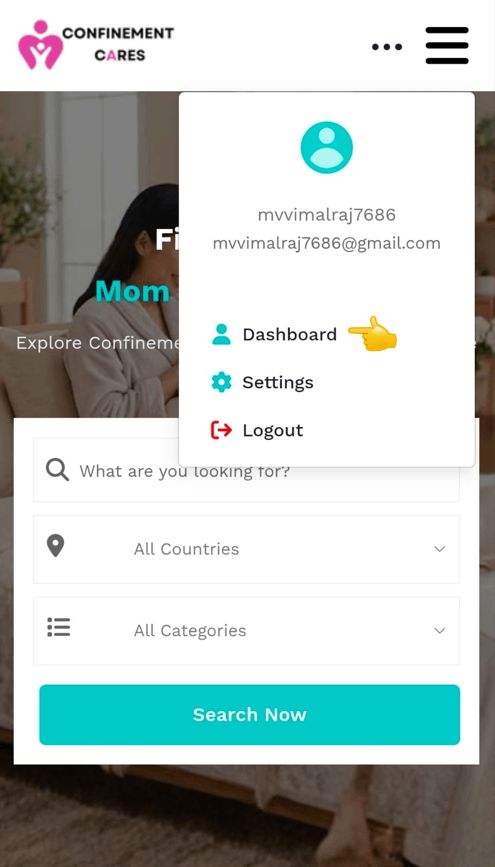
Dashboard
Step 3: Go to My Listings
Open the side menu and, under the Listings section, select My Listings, then choose the listing you want to update and click Edit
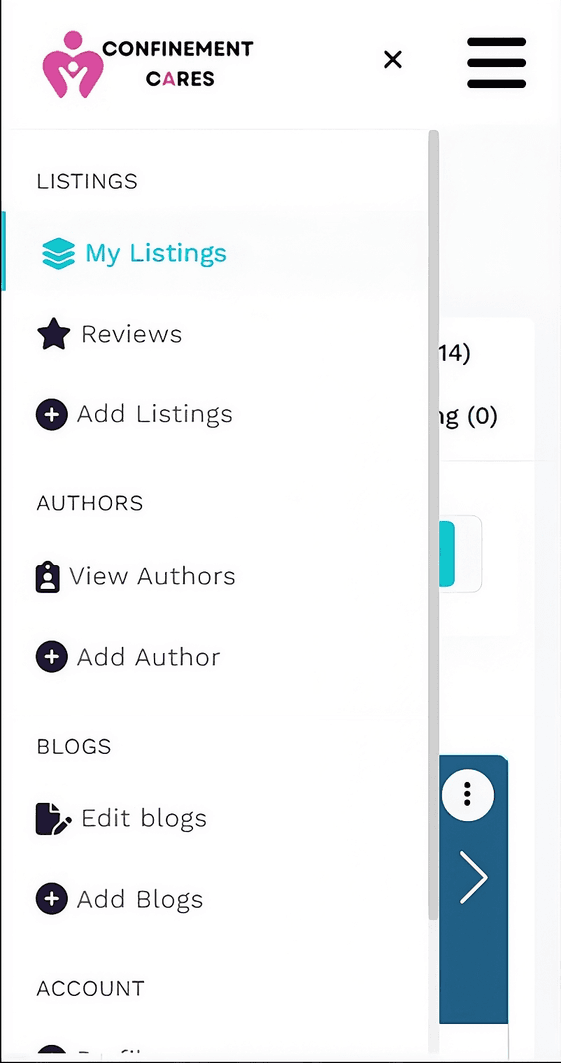
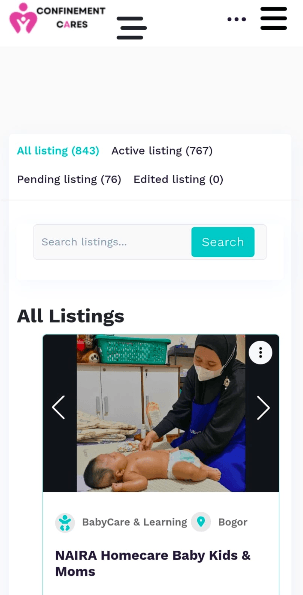
My Listings — Edit option
Step 4: Find the Photos Section
Scroll to the Photos section of the Edit Listing page.
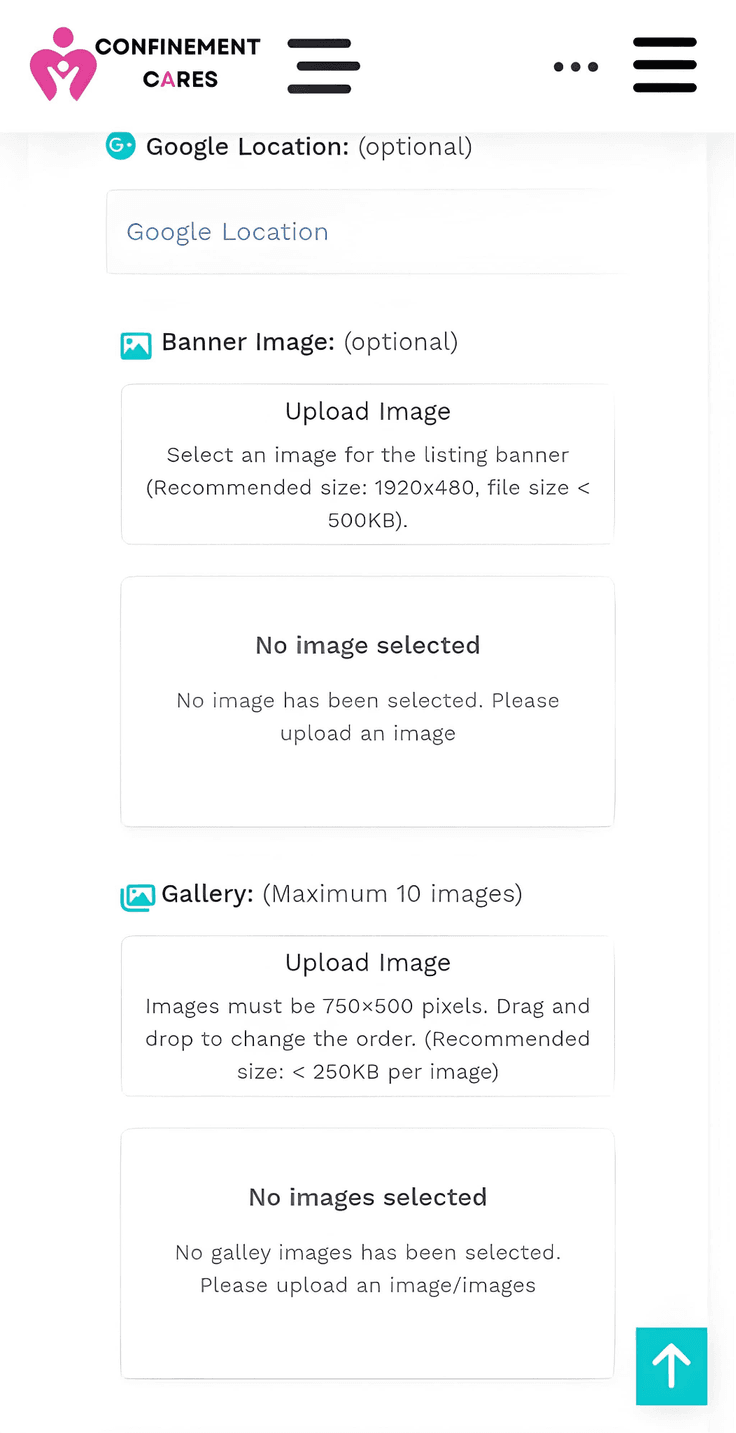
Photos section on the listing form
Step 5: Upload Your Photos
Click [Upload Photos / Add Images] and select the images from your device. Please use this type of picture:
- Accepted file types: JPG, JPEG, PNG, and WEBP.
- Maximum file size: 250 KB per photo.
- Maximum number of photos: 10 photos per listing.
- Use clear, well-lit photos that accurately represent your business, avoid heavily filtered or outdated images.
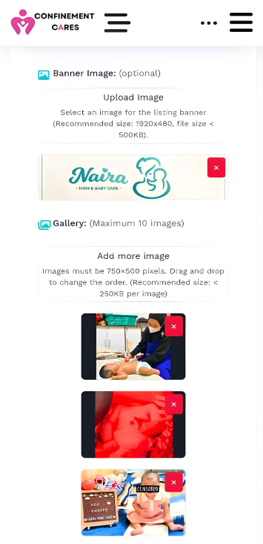
Selecting and uploading images
Step 6: Arrange and Set a Cover Photo
Lets you reorder photos or set a specific one as the main/cover photo, drag-and-drop or a "Set as cover" option is common on directory sites, but needs verifying here.
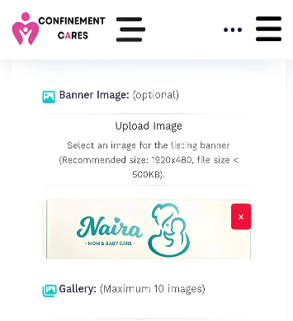
Photo arrangement / cover photo selection
Step 7: Save Your Changes
Scroll to the bottom of the page and click Submit Listing to save your new photos.
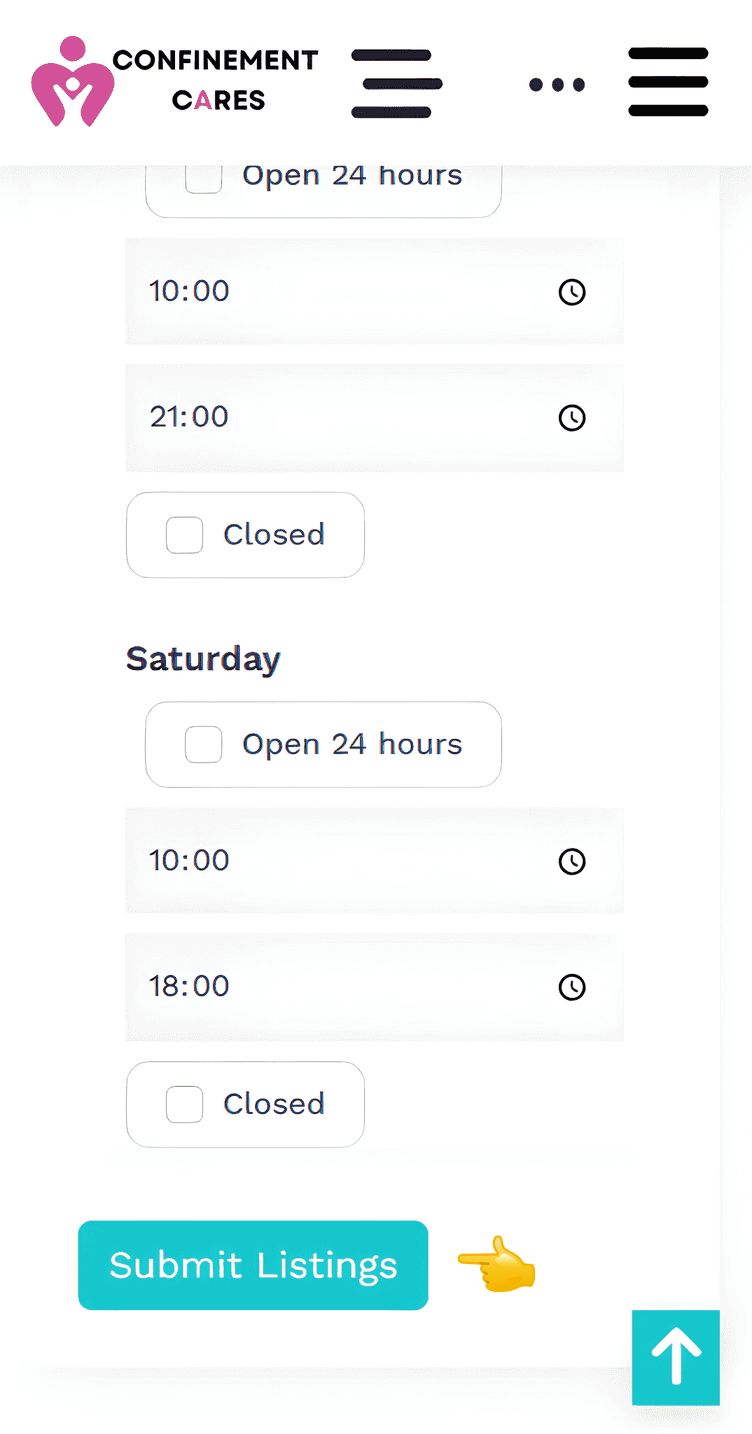
Update/Save button
Important Notes
- Photo updates may require admin approval before appearing live, depending on your listing's settings.
- Use high-quality, relevant images, photos of your space, team, products, or services work best.
- Avoid uploading images with contact details, watermarks from other platforms, or promotional text overlays, as these may be rejected during review.
Frequently Asked Questions
Q: How many photos can I upload?
A: You can upload up to 10 images.
Q: What image formats are supported?
A: The supported image formats are JPG, JPEG, PNG, and WEBP.
Q: Why aren't my new photos showing yet?
A: Photo changes may require admin approval before they appear on your live listing.
Q: Can I delete a photo after uploading it?
A: Yes, you may delete/remove it using the icon that appears on uploaded photos in the Edit Listing
page.
Need Help? If you run into any issues uploading photos, our team is happy to help.
📧 Email: [email protected]
Want your listing to stand out even more? Learn how to edit your listing and keep all your details fresh and accurate.
Recommended Blog Topics
- How to Register an Account
- How to Create a Business Listing
- How to Edit Your Listing
- How to Claim your Listing
- How to Update Contact Information
- How to Share Your Listing
- How to View Listing Status
- How to Reset Your Password
- How to Like, Rate, and Review a Listing
- How to Explore Blogs
- How to Explore Listings
- How to Access Resources